Testing the Holder
To test the holder app we build in this codelab, please follow the following steps:
Sharing via QR Code / BLE
- Build the LoyaltyReader APK from source
- Install it on a different device than the one with the holder app
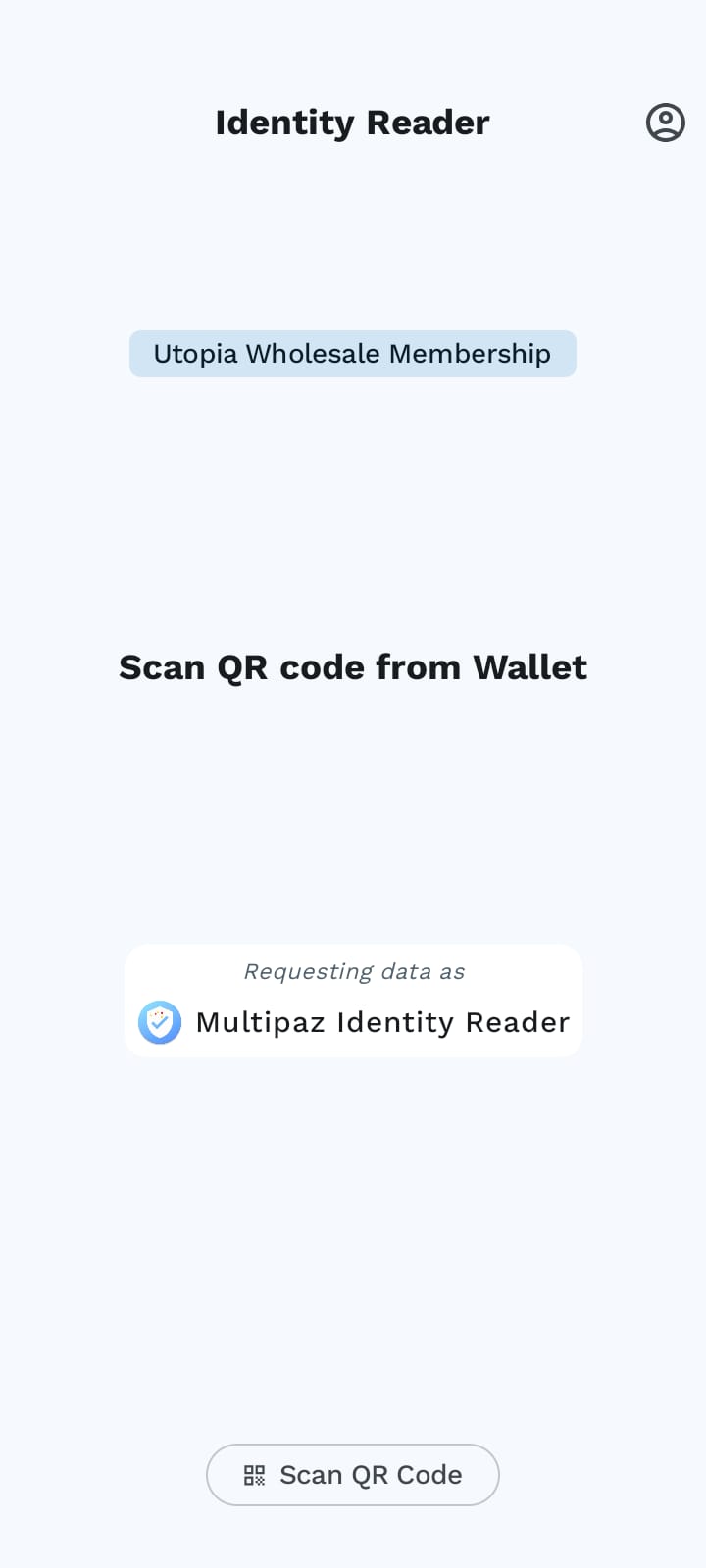
- Press "Read a QR Code" button on the bottom of the screen (ensure that Utopia Wholesale Membership is the selected verification mode)
- Press "Present mDL via QR Code" button on the holder app
- Present the QR to the LoyaltyReader on the holder app
- Use the Loyalty Reader app to scan the presented QR code
- A consent prompt appears as a bottom sheet on the holder app
- Press the share button on the holder app
- The holder device prompts for the device password -> perform the authentication (fingerprint/face/password)
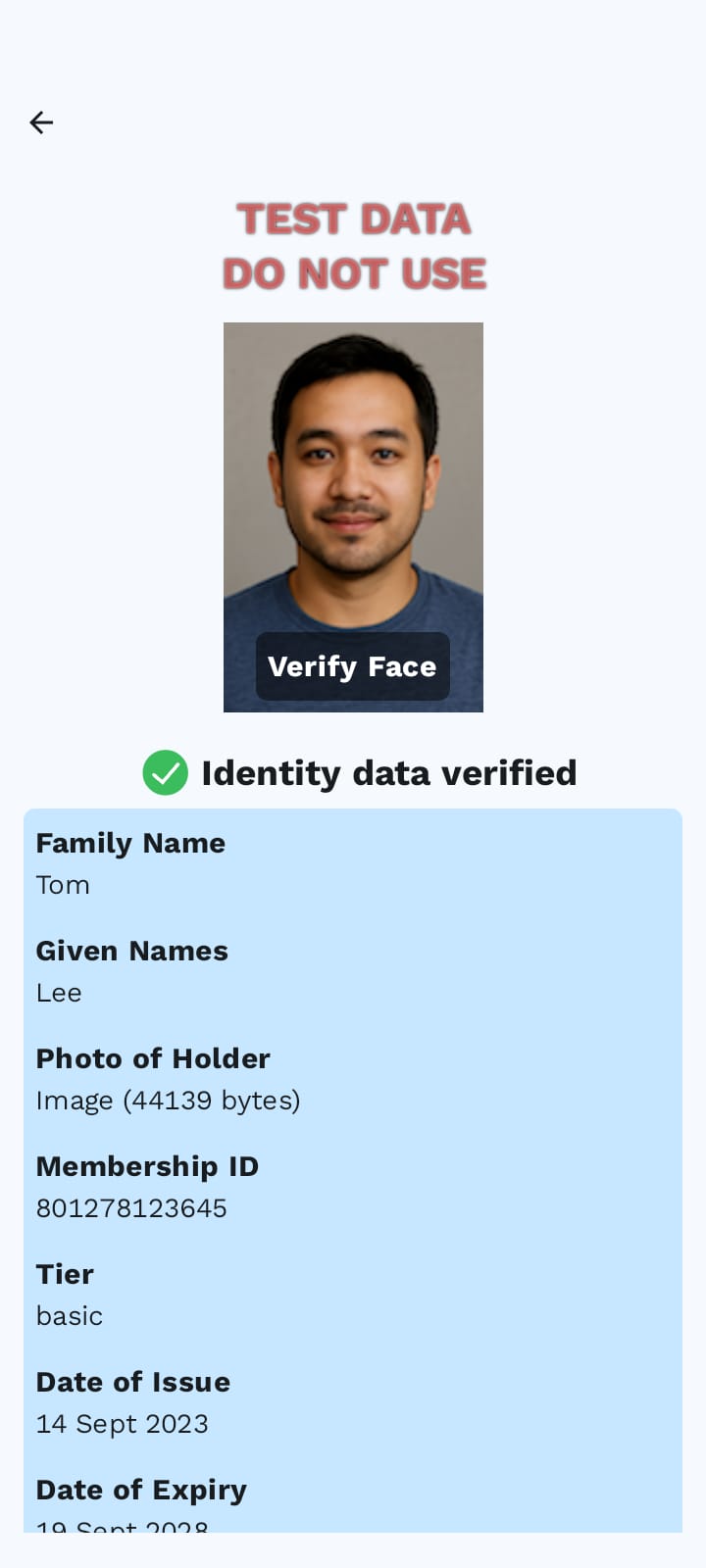
- You can now see the requested data presented in the LoyaltyReader
You can see the device flow in the screenshots below.

Sharing via NFC
- Build the LoyaltyReader APK from source
- Install it on a different device than the one with the holder app
- Turn on NFC on the holder device
- Tap the reader device to the back of the holder device
- If multiple holder apps are present, an app selector dialog appears - selec the Utopia Wholesale App from the list
- The holder device now requests the NFC to be tapped again, perform tap again
- A consent prompt appears as a bottom sheet on the holder app
- Press the share button on the holder app
- The holder device prompts for the device password -> perform the authentication (fingerprint/face/password)
- You can now see the requested data presented in the LoyaltyReader
The behaviour of the reader app is the same as it is for QR sharing.